blogs
Installing - Git in Windows
Reading Time: 2 Minutes
Tags: git, windows
- This is guide for installing Git for windows. Follow these steps to install Git in your Windows.
- Check if
Gitis already installed in your system.- Go to
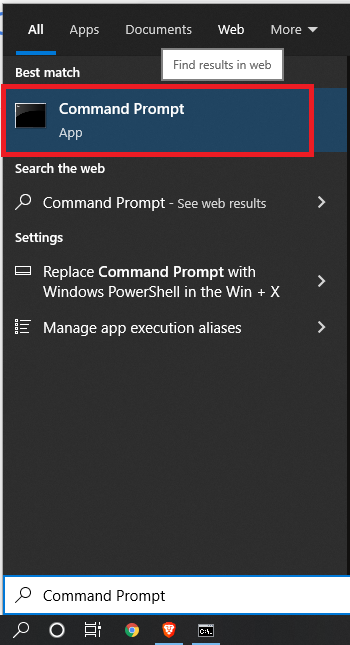
Command Promptorcmdby typingCommand Promptin search menu. Click onCommand Promptas shown in the screenshot.
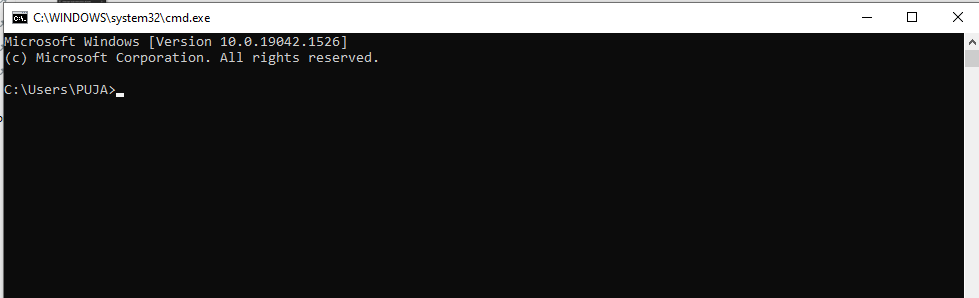
- A windows appears with Blinking Underscore, making ready to type in your command.
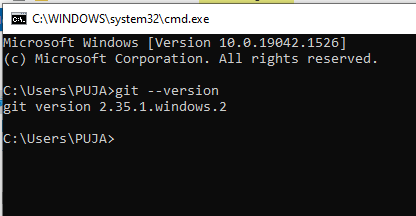
- Type:
git --version - If it returns the output like
git version 2.35.1.windows.2. Git, is already installed in your system.
- If the output is like
'git' is not recognized as an internal or external command, operable program or batch file., Git is probably not installed in your system.

- Go to
-
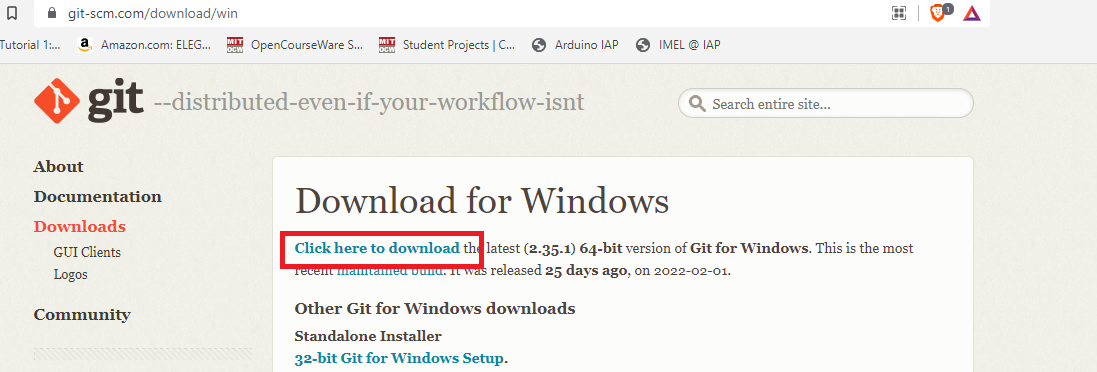
Go to the downloads page of git. Click here
- Click on
Click here to downloadas shown below.
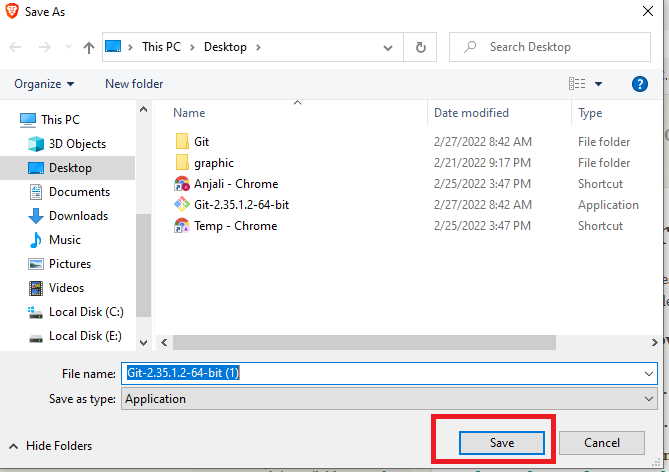
- Choose the desired download location, and click
Save. In my case, I am downloading in my Desktop.
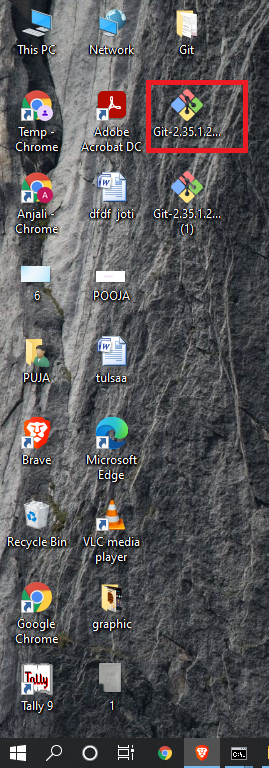
- Go the location where you have download the
.exe file. Double Click on it.
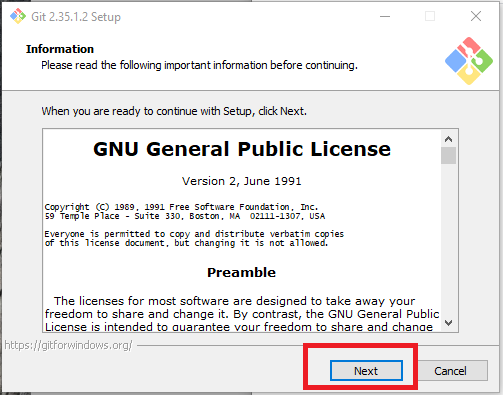
- Click
Yesif prompted fer User Account Control. - A box for the installation appears. Click on
Next.
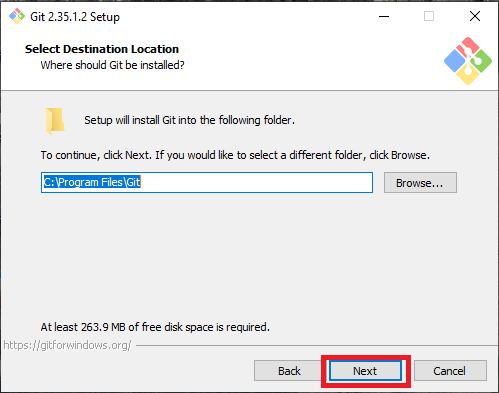
- Click on
Next.
- Click on
Next.
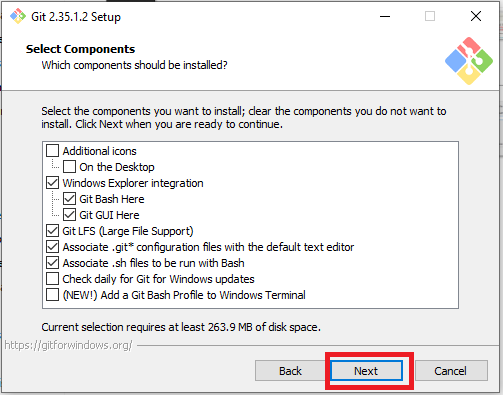
- Click on
Next.
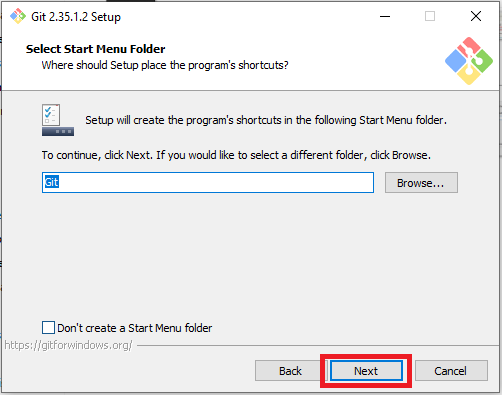
- Click on the Drop Down Arrow and Select
Use the Nano editor by default. and Click onNext.
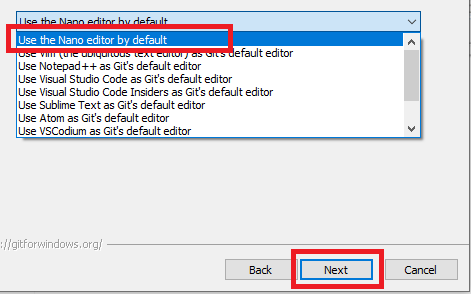
- Click on
Next.
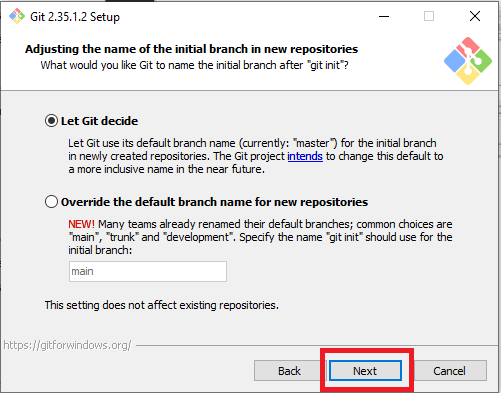
- Click on
Next.
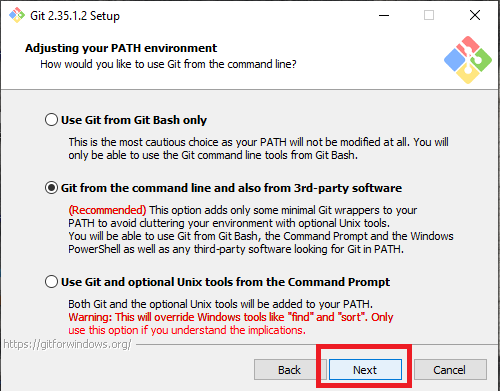
- Click on
Next.
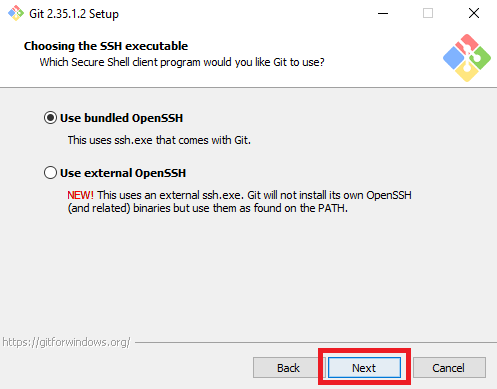
- Click on
Next.
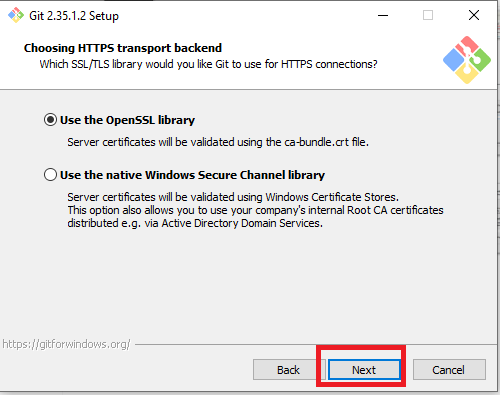
- Click on
Next.
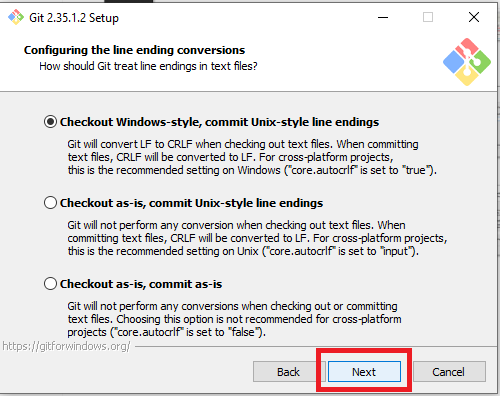
- Click on
Next.
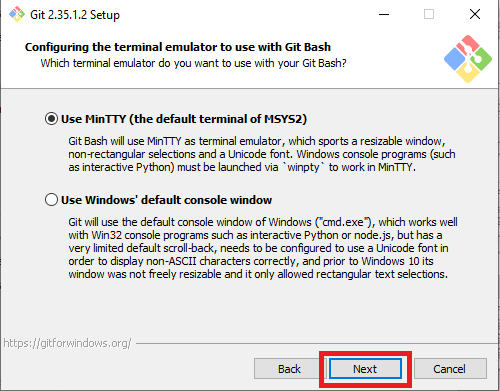
- Click on
Next.
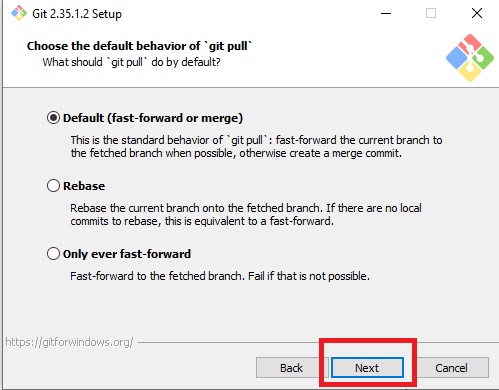
- Click on
Next.
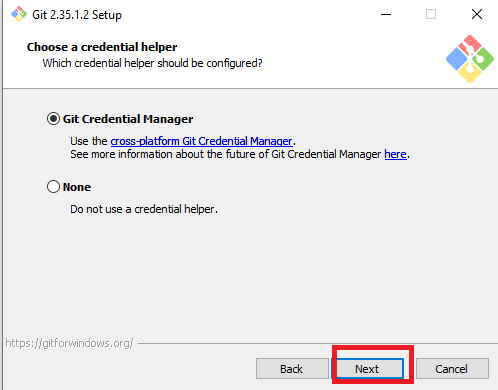
- Click on
Next.
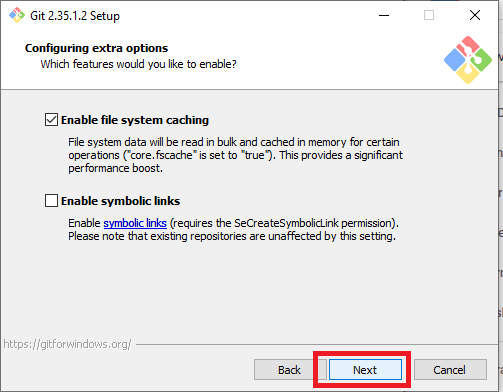
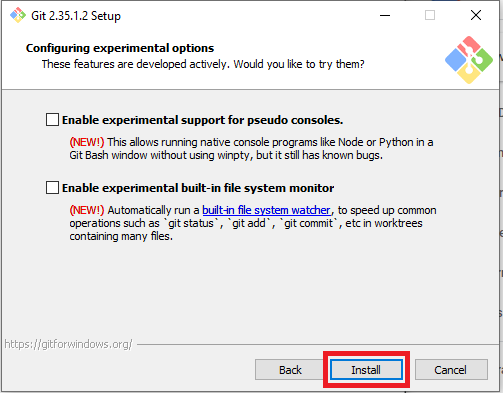
- Click on
Install. Wait for the installaion to complete.
- Untick the
View Release Notes. And click onFinish. - Congratulation
Git is installed.